Adding & Updating Components
Page template components can be added and updated, once you have added your page templates to your One Page Wonder course page. Refer to the previous article One Page Wonder Course Page - Page Template Management for instructions.
Edit Background Images
- Click on pencil icon to edit
- Upload images by using drag and drop or manually
- To upload images manually click on the ‘Add’ icon to open ‘File Picker’
- Set the value of ‘Seconds background lasts’
- Click on ‘Save Changes’ to Save
Edit Title
- Turn Editing On
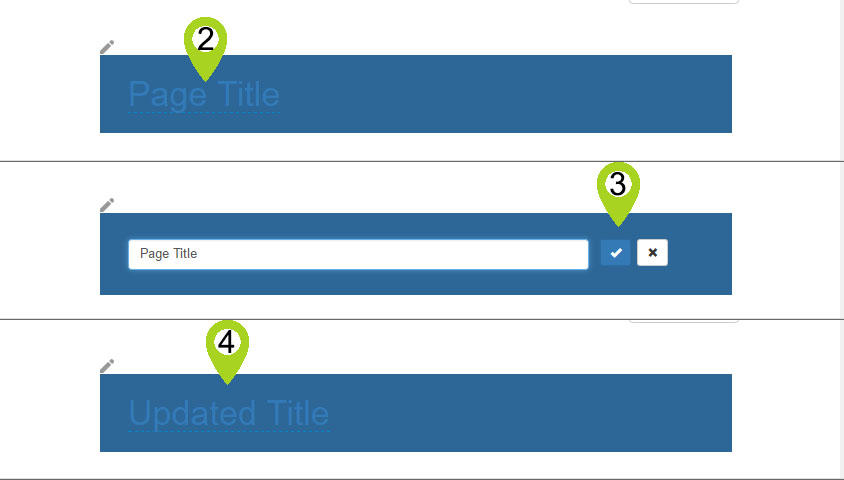
- Click ‘current title link’ to edit
- Enter new value for title in the text container and click on the tick icon to save
- To exit without saving, click on the cross (X) icon
Add/Edit Image
- Click on pencil icon located on top left of image placeholder to ‘Edit image Component’
- Upload images by using drag and drop or manually
- To upload images manually click on the ‘Add’ icon to open ‘File Picker’
- Click ‘Save Changes’ button to Save
Edit Text
Text is added & updated using a WYSIWYG html editor. Functionality available:
- Font and paragraph formatting
- Hyperlinked text
- Insert images
- 2 views – text and html
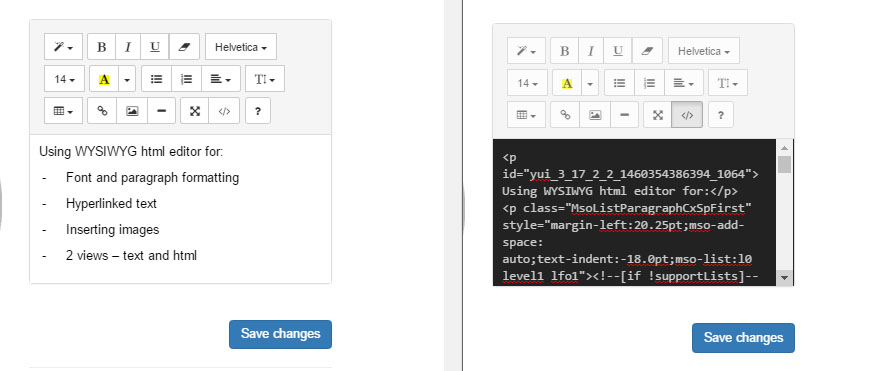
To save click on ‘Save Changes’ button.
Edit Panel
Edit Panel Components
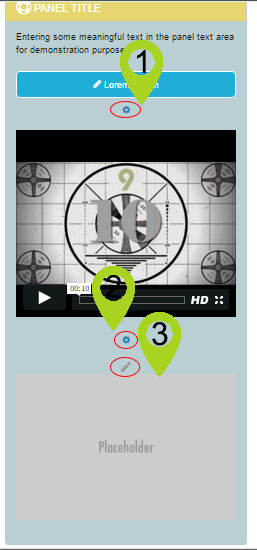
1. Click on the cog icon below the button to edit. From here you can update Name, URL, icon and can specify the new page is launched in a new window

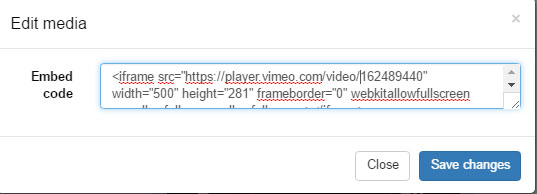
2. To edit the media component, click on the cog icon below this component and insert the iframe code in the 'Edit media' pop-up.
3. Click on the pencil icon to upload an image to your panel, using the standard image upload or File picker process.
Comments